How to create your account
This guide explains how to create an LLMrouter account and complete the registration process.
Supported languages
The sign-up and password setup pages support:
- English
- German
You can switch the language at any time.
Step 1 — Create your account
- Fill out the form to create your account:
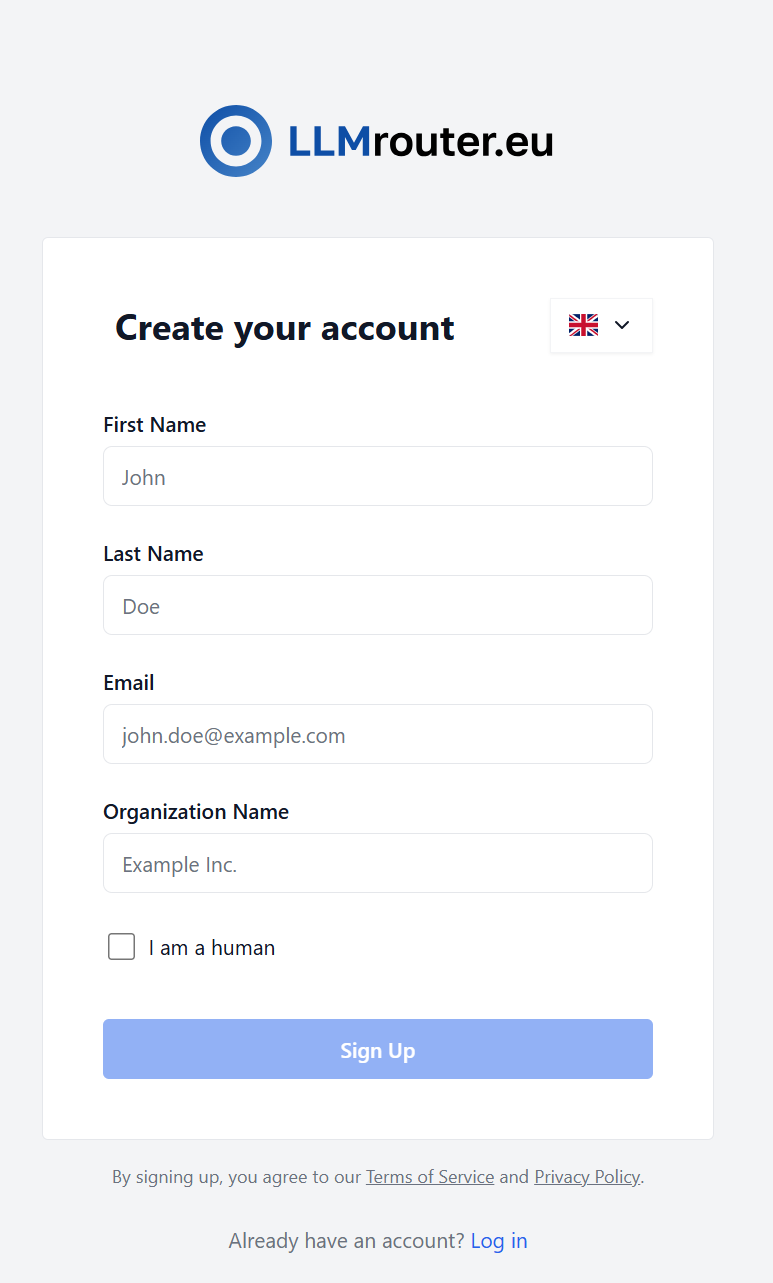
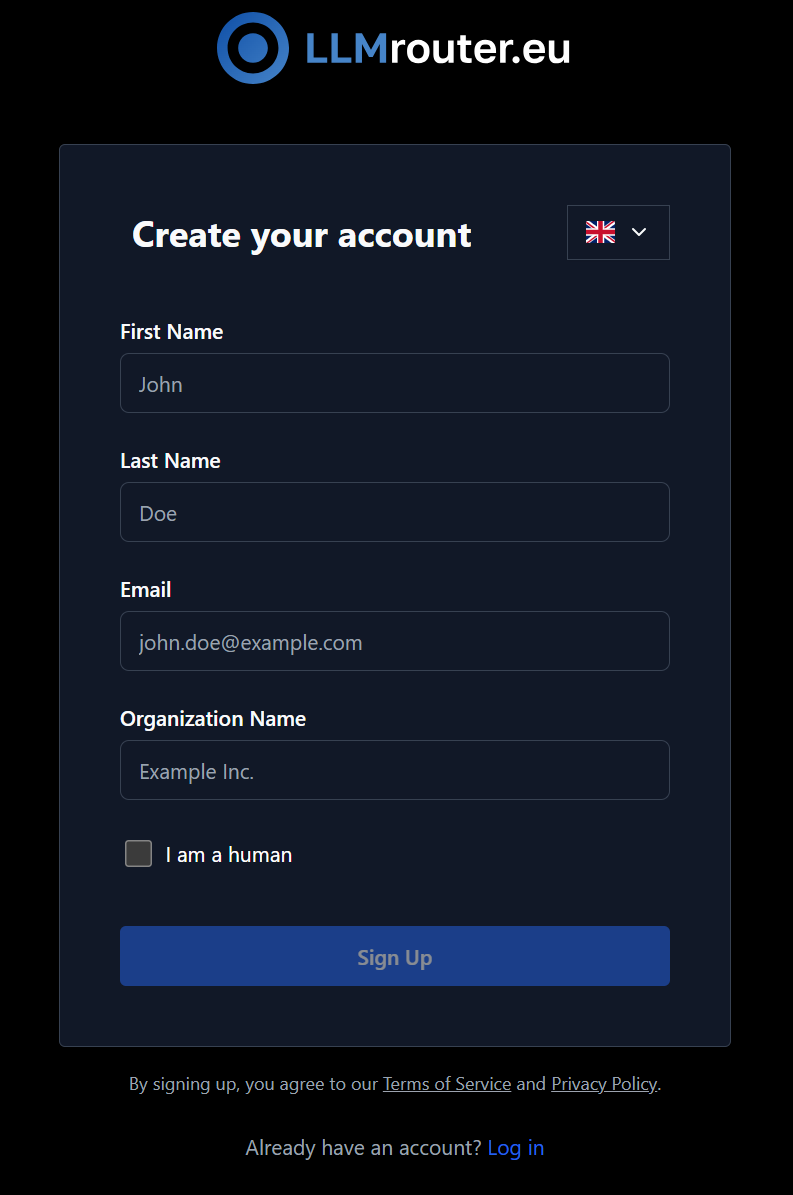
Figure 1: Sign up form
- Enter:
- First name
- Last name
- Organisation name
- Complete the “I am a human” verification.
- Select Sign Up.
What happens next
If successful, you will see a “Check your email” message and receive a verification email.
Step 2 — Verify your email and set a password
- Open the verification email.
- Click the link to open it (the link is only valid for 48 hours).
- Choose a strong password and repeat it.
Password requirements
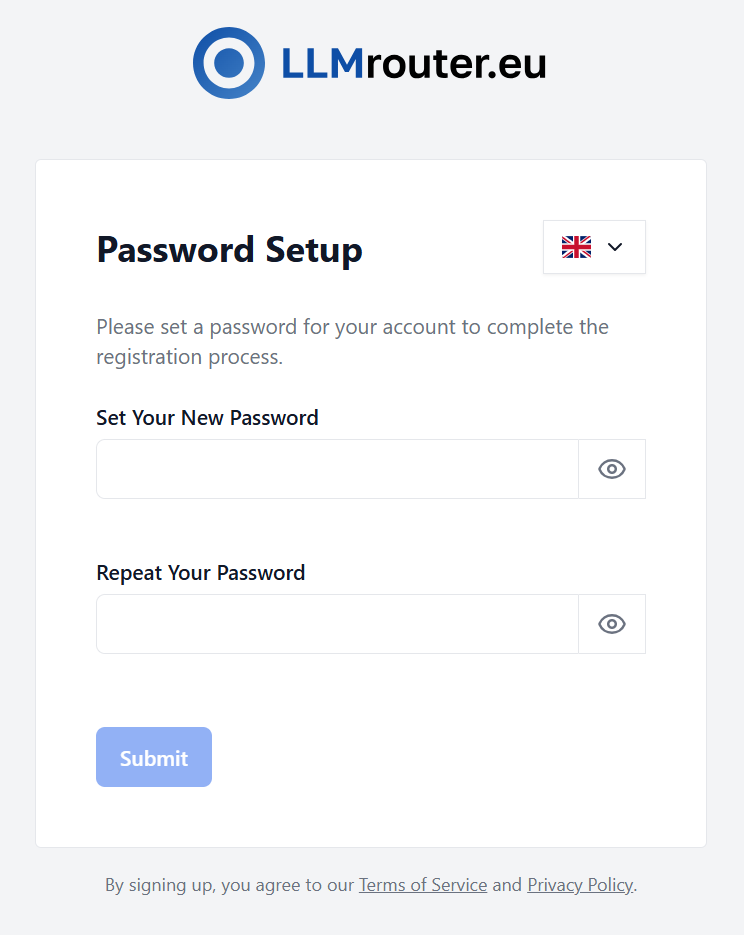
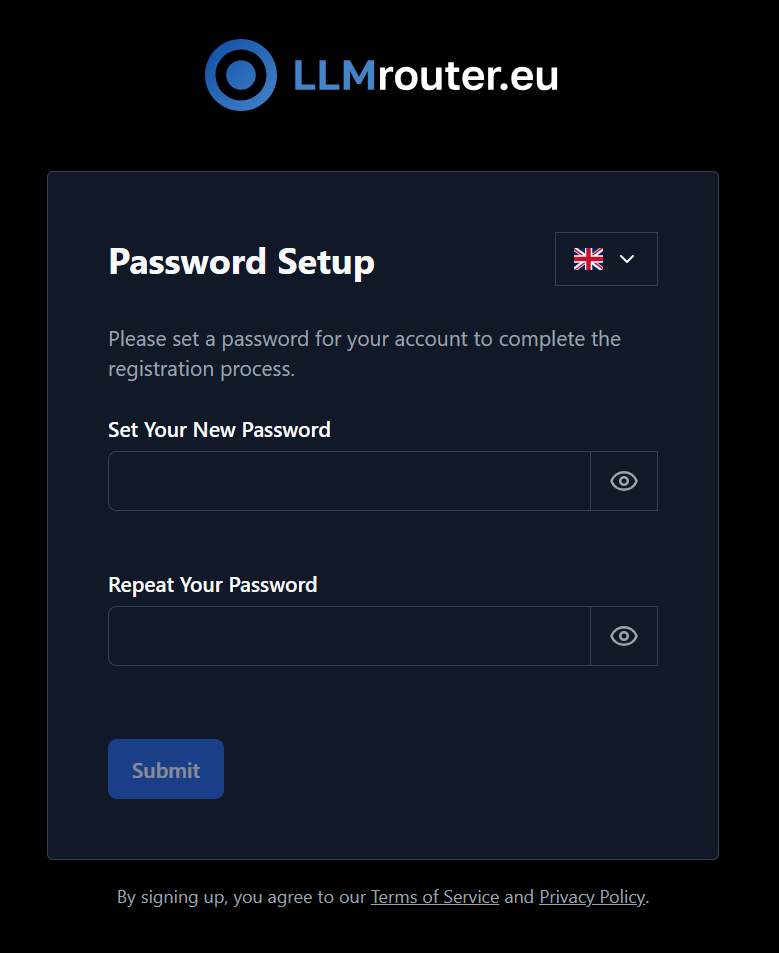
Figure 2: Set password form
Your password must:
- be at least 12 characters long
- contain at least one uppercase letter
- contain at least one digit
- contain at least one symbol (special character)
The page shows a password strength indicator and allows you to show/hide the password.
- Select Submit.
After you submit
- Your email is verified and your account becomes active.
- Click the button to go to login page.
- After successful login the app navigates you to model overview.
Step 3 — Log in
- Fill out the form with your email and password.
- After successful sign-in, LLMrouter loads your available organizations.
Automatic organization routing
After login:
- The app automatically navigates you to an organization.
Troubleshooting
User email already exists
- You can create a new account if your email address is not associated with any organization.
I did not receive the verification email
- Check your spam/junk folder.
- Wait a few minutes.
- If the issue persists, contact support / your administrator.
Captcha verification failed
- Complete the verification again and resubmit.
- If the form becomes blocked after a failed attempt, reload the page and try again.
- If the issue persists, contact support / your administrator.
My email address is rejected
- Make sure you don't use a temporary email
My password is rejected
- Make sure it matches all requirements.
- If the strength indicator stays Weak or Medium, add more complexity.
The confirmation link does not work
- The link may be invalid or expired (It is only valid for 48 hours). Sign up again or contact support.