API Key Management
This page explains how to create, manage, and secure API keys for accessing LLMrouter services.
Overview
API keys are used to authenticate and authorize access to LLMrouter APIs. Proper management of API keys is essential for security and operational efficiency.
Creating an API Key
- Navigate to the API Key Assignment section in the LLMrouter dashboard.
- Click + Create API Key.
- Assign a name and routing strategy to the new API key. (For now only the default routing strategy is available.)
- Optionally enable Set a budget limit, enter a budget amount, and choose a reset period (daily, weekly, or monthly). A budget limit and a reset period are always set together.
- Save the generated key securely.


Figure 1: Overview of API Keys


Figure 2: Create a new API Key
Security Best Practices
- Store API keys securely (never commit to source control).
- Rotate keys regularly.
Managing API Keys
The API key table lists each key with its Key, the Budget Limit in Period (including a usage bar), the Reset Period, and the All-time spend.
- Edit Key: Edit existing key
- Reset spend in period: Reset the spend counted against the current budget limit back to zero (only available for keys with a budget limit)
- Delete Key: Delete key


Figure 3: API Key options
Editing an API Key
The edit dialog shows two spend figures for the key:
- All-time spend: the total spend since the key was created. This value is never reset.
- Spend in period: the spend counted against the current budget limit. This is the value that Reset spend in period sets back to zero.
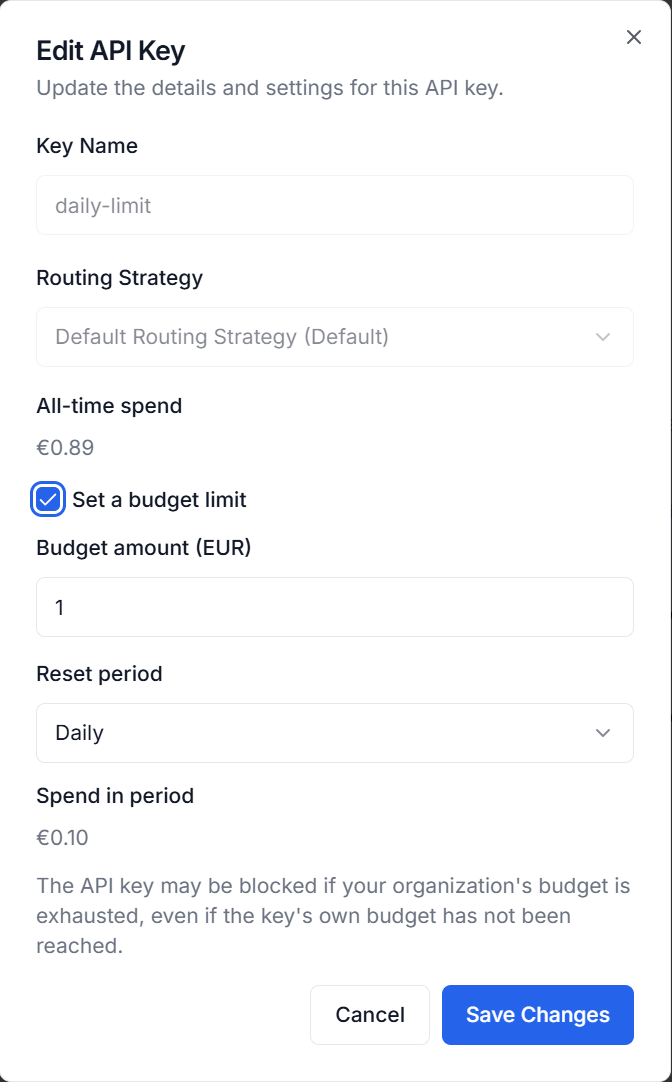
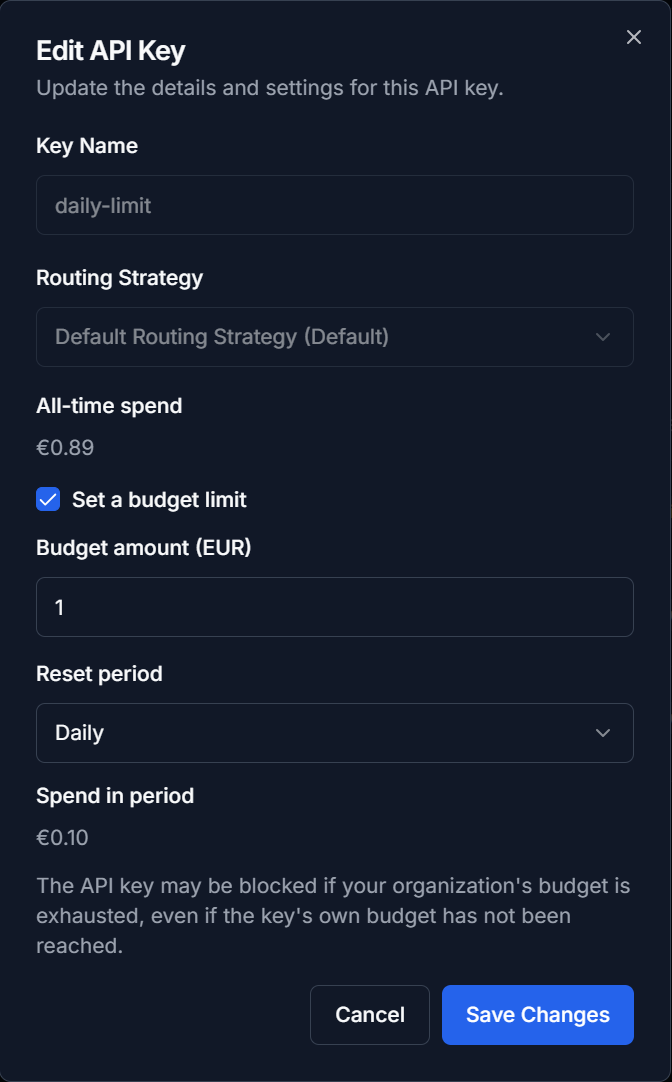
Figure 4: Edit an API Key
Keys without a budget limit are shown as Unlimited with the reset period Never.
Budget Limits
The budget limit of an API key applies to each reset period. Two things are worth knowing:
A key's budget limit can be exceeded. Requests that are already running are completed and are not stopped midway. In addition, all involved systems can take a few minutes to synchronize the spend. The limit will only ever be exceeded by a few euros.
- Daily: always at 00:00 UTC
- Weekly: always on Monday at 00:00 UTC
- Monthly: always on the 1st of the month at 00:00 UTC
The reset time does not depend on when you create or edit the key. For example, if you set a monthly budget on 30 October, the budget resets on 1 November and stays active for the rest of November.
Resetting the Spend in Period
If a key has a budget limit with a reset period (daily, weekly, or monthly), you can reset the spend counted against the current period back to zero at any time. The key can then use its full budget limit again.
- Open the actions menu (⋯) of an API key that has a budget limit.
- Select Reset spend in period.
- Review the current spend in the dialog and confirm with Reset.
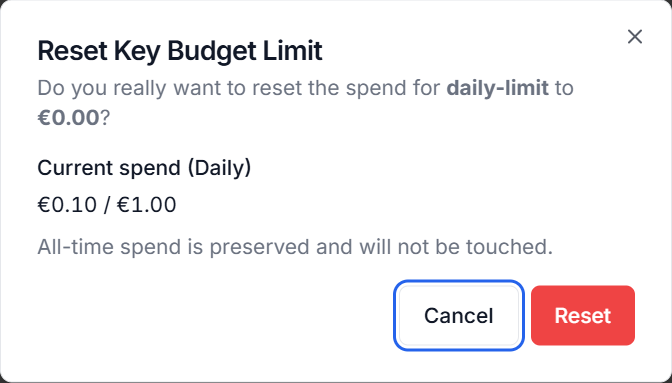
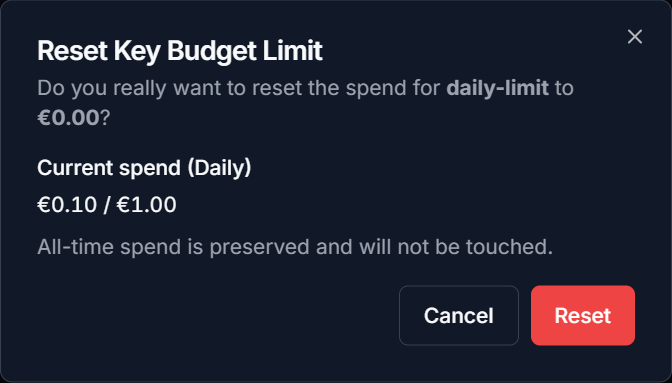
Figure 5: Reset the spend in period
The reset applies only to the current period:
- The Budget Limit in Period starts again from 0€.
- The budget limit itself is not changed.
- The All-time spend is preserved and will not be touched.
The Reset spend in period action is disabled for API keys without a budget limit (unlimited keys).
Notes
This feature is currently in preview. Some functionality may not be fully available yet.